How to edit Team Stats graphics
See also: How to change textbox graphics (Window Frames)
The backgrounds for the Team Stats view can be edited in a similar way to the Window Frame graphics, though these are handled differently. Whereas the frame graphics had a single row for each color palette in use, the Team Stats graphics are split into two unique images: one indexed for male or female player use, and one for Special Episodes. These can be found in the Backgrounds section, as DUNGEON/sub.bgp and DUNGEON/sub2bgp respectfully. Export these by using Background > Export in the top of the image view.
The visual design of either can be edited to your liking. But changing the colors as seen in-game requires editing certain color palettes, also called colormaps. A colormap is a set of colors specified in the image data, which the game uses to "map" what color values should be shown-on screen. These colormaps have three unique sets, as seen below.
-
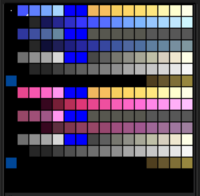 default Team Stats palette (blue/pink)
 -
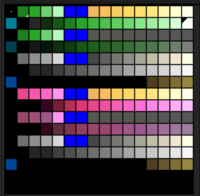 Special Episode Team Stats palette (only green used)


Note that brown checkered pattern included in the PNG will appear tiled beneath all other window frames used, aside from the Team Stats view itself. This can also be edited as needed, provided the pattern is the same size as the original.
The gold colors are used for the spotlight effect where the character sprite is displayed.
Gameplay Note
As of now, it appears the use of the Team Stats graphics is limited to two colors (as opposed to the frames having four). As sub2.bpg is a separate image used for Special Episodes, genderless or invalid characters default to the blue set of colors. Also, the 1/2/3/4 number graphic is not able to be exported from SkyTemple.